
Starbridge Zapier integration: how to route buying indicators into your stack
How to connect Starbridge to Zapier, which Bridge events trigger a Zap, and how to route only high-scoring buying indicators to your reps.

This guide covers how to connect Starbridge to Zapier and which events start a Zap. It also covers which workflows to build first, how to filter by score so reps see only strong buying indicators, and when to use the native CRM sync instead.
TL;DR: What is the Starbridge Zapier integration?
The Starbridge Zapier integration sends public-sector buying data into Zapier, where it drives workflows across apps in Zapier’s directory. Starbridge acts as the trigger: a new or updated row starts a Zap, and the subsequent steps run in Slack, a sequencer, a spreadsheet, or another connected tool.
Builders configure the connection in Zapier once, and reps see the result in the tool they already have open.
What is a Starbridge Bridge?
A Bridge is an automatically updated table of public-sector activity in the Starbridge platform. It brings together signals such as RFPs, meeting discussions, contracts, and job changes, then enriches them with context that helps revenue teams decide which accounts to prioritize and when to engage. Each row can trigger a Zap that sends that context to Slack, a CRM, or another tool.
How to connect Starbridge to Zapier
Connecting Starbridge to Zapier starts in Zapier, not in Starbridge. You create the Zap first and authenticate partway through.
Follow these steps:
- Open the Starbridge app page in Zapier and start a Zap with Starbridge as the first step.
- Provide a Starbridge API key when Zapier asks for one. When your first Zap prompts you for a key, generate one in the Starbridge dashboard under Settings, then API Keys.

- Select the Bridge that feeds the Zap, then give the Zap a label.
- Test the connection, review the Bridge fields Zapier returns, and map those fields into the steps that follow.
Two details in that setup sequence save trouble later:
- Name each API key after the service that will use it, because a key called "Zapier production" is far easier to rotate a year later than one called "key 1."
- Then treat the Zap label as a real naming decision rather than a formality.
The label appears inside Starbridge on the Bridge you selected, so a builder looking at a Bridge that feeds four Zaps can tell which automation is which without opening Zapier.
Once the test returns the Bridge fields, every column in that Bridge is available as a field in later steps.
A Bridge column containing a score, a contact email, or an AI-generated summary becomes a mappable value in Slack, a sequencer, or a spreadsheet.
Which Starbridge events trigger a Zap
Starbridge offers two triggers, New Row and Updated Row.
- New Row fires when a row is added to the Bridge, and it fires only for that row.
- Updated Row fires whenever any cell in a row changes, and it fires for every row that has a changed cell.
That difference affects how often the workflow runs.
For example, a Bridge that re-runs enrichment weekly will send far more rows through an Updated Row trigger than through New Row.
The processing rule matters as well:
Because a Zap waits for all columns to finish, a downstream step never receives a partially built record with the score column still empty. This way, a builder can map a scored field into a Slack message and trust that the value is there.
Also, rows that were created days or even months before the Zap was created are not lost.
From the integrations panel in Starbridge, a builder selects which Zap to run and which rows to send, then triggers the send manually.
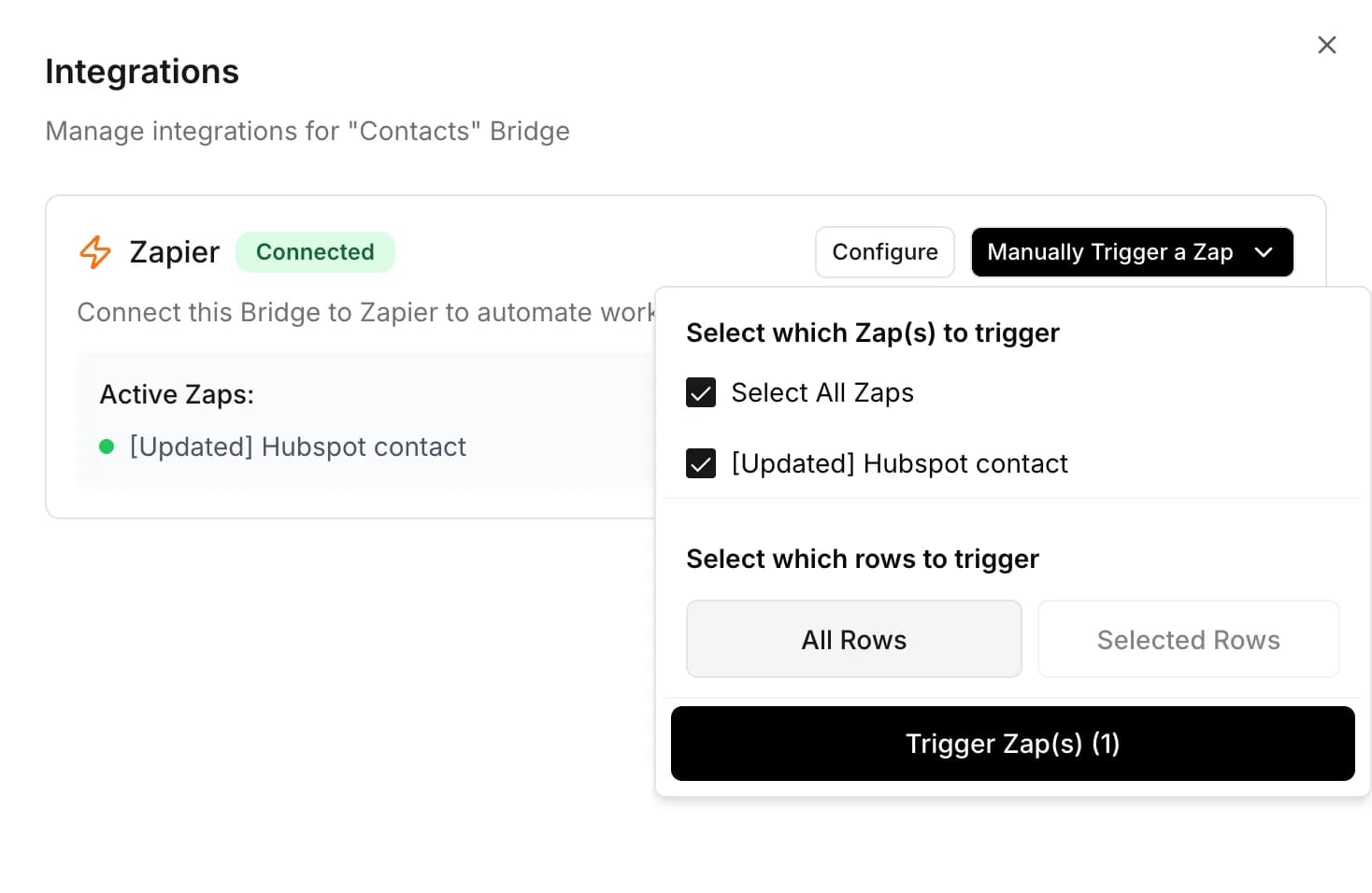
That manual path is how you backfill a Bridge that was built months before anyone automated it.
Workflows worth building with Starbridge and Zapier
The workflows worth building first move a Bridge row automatically to where a rep already works.
Zapier publishes pre-built Starbridge templates for these destinations:
- A Slack channel message or direct message when new rows arrive
- A HubSpot contact update when rows change
- A new record in Clay
- A row appended to Google Sheets
- A lead added to a marketing campaign when a high-scoring row appears
The directory lists two Starbridge triggers and no Starbridge actions, which means a Zap can read a Bridge row and send it onward but cannot write a value back into the Bridge.
This means builders should design one-way flows out of Starbridge and keep the system of record on the other end.
That constraint is less limiting than it sounds, because the Bridge row already carries the context a rep needs.
For example, a buying indicator pushed to a sequencer arrives with the account, the contact, and the AI-generated snippet that explains why the account is worth a call today. An RFP row pushed to Slack arrives with its fit score attached, so the person reading the channel can tell a serious opportunity from a routine posting without opening the RFP.
For integrations outside the scope of the built-in app directory, webhooks provide a flexible alternative.
Teams that run their own systems point a Zap at an internal endpoint and send the Bridge row to a data warehouse, a proposal tool, or a custom alerting service.
We recommend choosing a destination your reps open on their own. A Slack channel your reps already watch is far more likely to be read than a workflow ending in a tool they rarely open.
Routing only high-scoring buying indicators to your reps
Place a filter between the Starbridge trigger and the action so that only rows above a score threshold reach a rep.
If you want, you can send rows that do not pass the threshold to a lower-priority channel or digest.

A Bridge that ranks meeting mentions from best to worst gives you a numeric score to test against, so a filter step can pass only rows above whatever cutoff you set—say, above seven on a one-to-ten scale.
Build a second Zap on the same Bridge with the opposite condition, and the rows that fall short go to a sequencer or a weekly digest instead of a rep’s direct messages.
Map both the lead data and the personalization snippet Starbridge generated from the buying indicator itself. Inside a sequencer, that snippet becomes a personalization field you can insert into an email, so the first line of the email references the board discussion that triggered the send rather than a generic opener.
Doing the same work by hand means someone reads every row, decides which ones warrant a rep’s attention, and pastes the context into an email. At a few dozen rows a week, that is tedious. At the volume of your entire TAM, that review is the first thing to get skipped.
The threshold itself is not a setting you’ll get right on the first try, so don’t try to make it perfect yet. Start with a strict threshold, watch which routed rows reps actually work, and then loosen it once reps consistently act on those rows.

Kaizen Labs routes buying indicators straight into a Slack channel, where reps review ICP fit, pull context from board meeting excerpts, and reference those details in outreach. The team saw a 10 to 20 percent lift in monthly quota attainment.
Zapier or the native CRM integration for Starbridge data
Use the native, bidirectional CRM integration when the destination is a Salesforce or HubSpot record, and use Zapier when the destination is anything else.
The native CRM integration matches each Starbridge buyer to an existing CRM account, checks whether a contact already exists before writing, associates new contacts to the right account, and flips an active flag when someone leaves their role.
A Zap does none of that on its own, so unless you add the lookup and update steps yourself, repeat runs can start creating duplicate records that someone has to merge later.
Also, a Zap needs an API key and a Bridge, and a builder can have one running the same afternoon. The CRM sync requires an admin to create custom fields, authenticate, and review account matches before any data moves, which is a larger commitment that pays off across every Bridge the team builds afterward.
You can run both on the same Bridge. Starbridge writes the contact into the CRM, while a Zap notifies the rep in Slack that the contact is there and why it matters this week.
What to build first
To start, connect one Bridge, point it at the channel your reps already read, filter it aggressively so every routed row merits follow-up, and let the volume grow once the workflow proves itself.
From there, we recommend building a second Zap on the same Bridge that handles lower-scoring rows, and a third that sends conference or job-change activity to a different team.
The native CRM integration keeps contact and account records current across all of it, so reps see the same buying activity whether they start their day in Slack, in a sequencer, or on an account record.
If you want to see Starbridge in action, book a demo.
Frequently asked questions
Yes. A Bridge can feed multiple Zaps, each with its own label and destination. For example, one Zap can alert reps in Slack when a high-scoring row appears, while another routes lower-scoring rows to a weekly digest.
Zapier’s Starbridge listing offers two triggers, New Row and Updated Row, and no actions. A Zap can send Bridge rows to other apps, but the built-in Starbridge app has no action for writing data back to a Bridge. Use the native, bidirectional CRM integration to write data into Salesforce or HubSpot.
The first time you connect Starbridge in Zapier, you are prompted for an API key. Generate one in the Starbridge dashboard under Settings, then API Keys, and give it a name that clearly identifies the service using it.
Yes. From the integrations panel in Starbridge, select which Zap to trigger and which rows to send, then start the send. Teams use this to backfill a Bridge that existed before the automation or to push a single account on request.
No. Both triggers wait until every column in the row has finished running. A downstream step receives the complete record, including the score and enrichment columns, rather than a partially filled row.
Zapier’s Starbridge listing places the integration alongside 9,000 other connected apps. The pre-built templates cluster around Slack, Google Sheets, HubSpot, and Clay, and a Zap can reach anything else in the directory.
Explore our use case library
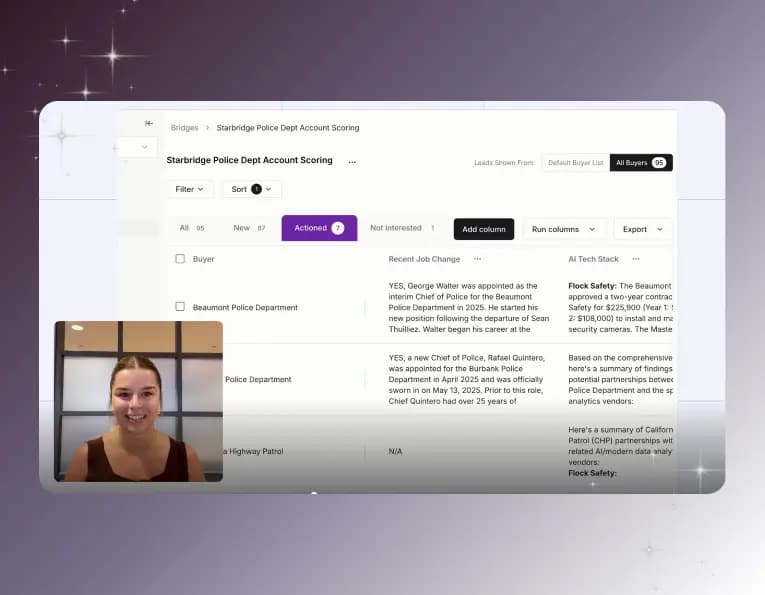 Automate account research with AI agentsStop manually researching accounts. Starbridge AI agents automate account research by monitoring buying signals 24/7 and surfacing the right contacts.
 Identify competitor contract expiration datesThe RFP is usually a formality. Starbridge surfaces competitor contract expiration dates so your reps reach accounts before the renewal cycle closes.
 Create a conference campaignTurn conference badge scans into pipeline. Import your contact list, surface buying signals across every account you met, and follow up with context.